
Within Alto, all available Classic reports fall under the following categories:
- Property
- Applicant
- Financials
- Sales
- Lettings
- Marketing
- EPC
- Property Management
- Property Management Financials
- Management
You can control which staff members are able to run certain reports by using report tokens.
Report tokens allow you to restrict access to specific reports, ensuring that sensitive or operational data is only available to authorised members of staff. This is particularly useful for reports that contain financial or management information.
For example, you may want:
- Financial reports to be accessible only to finance staff
- Property Management reports to be accessible only to property managers
- Management reports to be accessible only to senior staff
Report tokens act as an additional permission layer that works alongside Group Roles.
How report tokens work
Report tokens are applied in three stages:
- Create a report token - This defines a report permission
- Assign the token to reports - This restricts those reports so they require the token
- Assign the token to group roles - Users within those roles can run the reports
If a report doesn't require a token, it can be accessed by any user who has permission to run reports.
Creating a report token
To restrict access to certain reports, you first need to create a report token.
- Click Tools (the cog) on the main navigation bar
- In the dropdown menu, click Templates and admin
- On the side menu, under System Tools, click System Administration
- Click Reports
- Click Report Tokens
- Click Create New
- Enter the name of the Report Token as the ReferenceCode
- Enter a Description explaining the purpose of the token
- Set the Status as Active
- Click Create
The newly created report token will now appear on the Report Tokens screen.
Associating tokens with reports
Once the token has been created, you can assign it to specific reports.
- Click Tools (the cog) on the main navigation bar
- In the dropdown menu, click Templates and admin
- On the side menu, under System Tools, click System Administration
- Click Reports
- The Group Report screen displays a list of all reports available in Alto. On the right hand side, you can select the report tokens that are to be associated with each of the reports
- Select the name of the report and use the Required Token dropdown menu to set your tokens accordingly
- Click Save
Once a token is assigned, that report will only be accessible to users who have that token assigned to their Group Role.
Assigning report tokens to Group Roles
After associating the token with reports, you must assign the token to the appropriate Group Roles so that users can access those Classic reports.
- Click Tools (the cog) on the main navigation bar
- In the dropdown menu, click Templates and admin
- On the side menu, under System Tools, click System Administration
- Click Group Roles
- Click Edit alongside the relevant group role
- Scroll to the bottom and select which Report Token is to be assigned to the role. To do this, tick the box in the Selected column
- Click Save
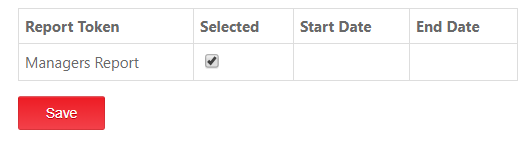
Users assigned to this Group Role will now be able to run any reports that require the selected report token.
-
Related Help Centre articles that you may find useful.